
n8n
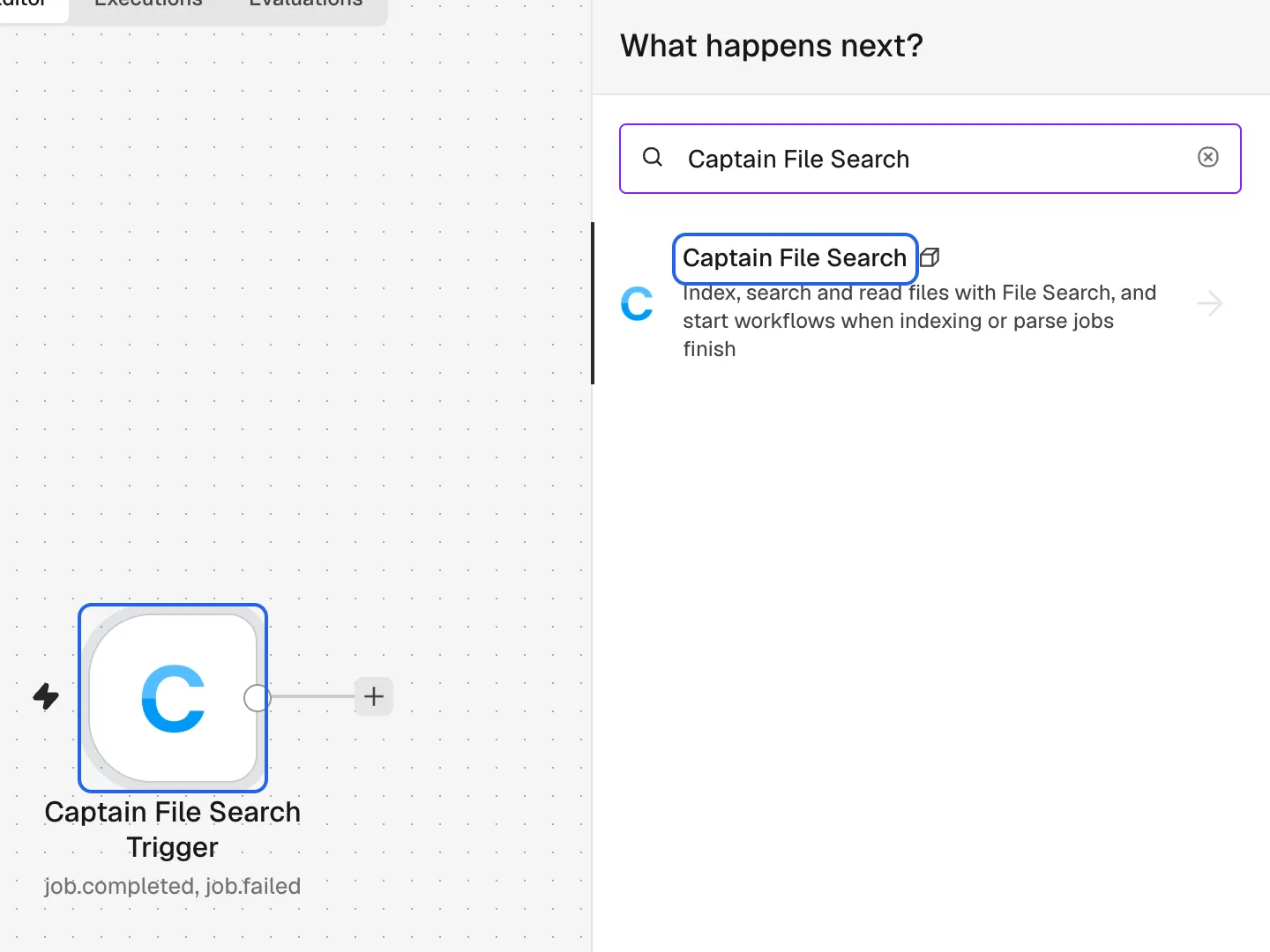
The Captain File Search package for n8n adds two nodes to the workflow editor:
- Captain File Search searches collections, indexes files, and manages documents, collections, jobs, syncs and parsing. It also works as a tool for the n8n AI Agent.
- Captain File Search Trigger starts a workflow when an indexing or parse job completes, fails, is cancelled or times out.
The package is @captain-sdk/n8n-nodes-filesearch on npm. Its source is public at runcaptain/n8n-nodes-filesearch.
Install
Installing community nodes needs the Owner or Admin role in n8n. Once installed, the nodes are available to every member of the instance.
n8n Cloud
Self-hosted
- In the n8n Cloud console, open Instance settings and turn on Verified community nodes.
- Open a workflow and open the nodes panel with + or the
Nkey. - Search for
Captain File Search. - Under More from the community, select Captain File Search.
- Select Install.
After installing, search for Captain File Search in the nodes panel. One result holds both nodes: select it to see the actions, and the trigger, listed as On new Captain File Search event.
Connect an API key
- Create an API key in the Studio.
- Add a Captain File Search node to a workflow.
- Under Credential, select Create new credential.
- Paste the API key into API Key.
- Leave Base URL as
https://api.filesearch.dev. - Select Save.
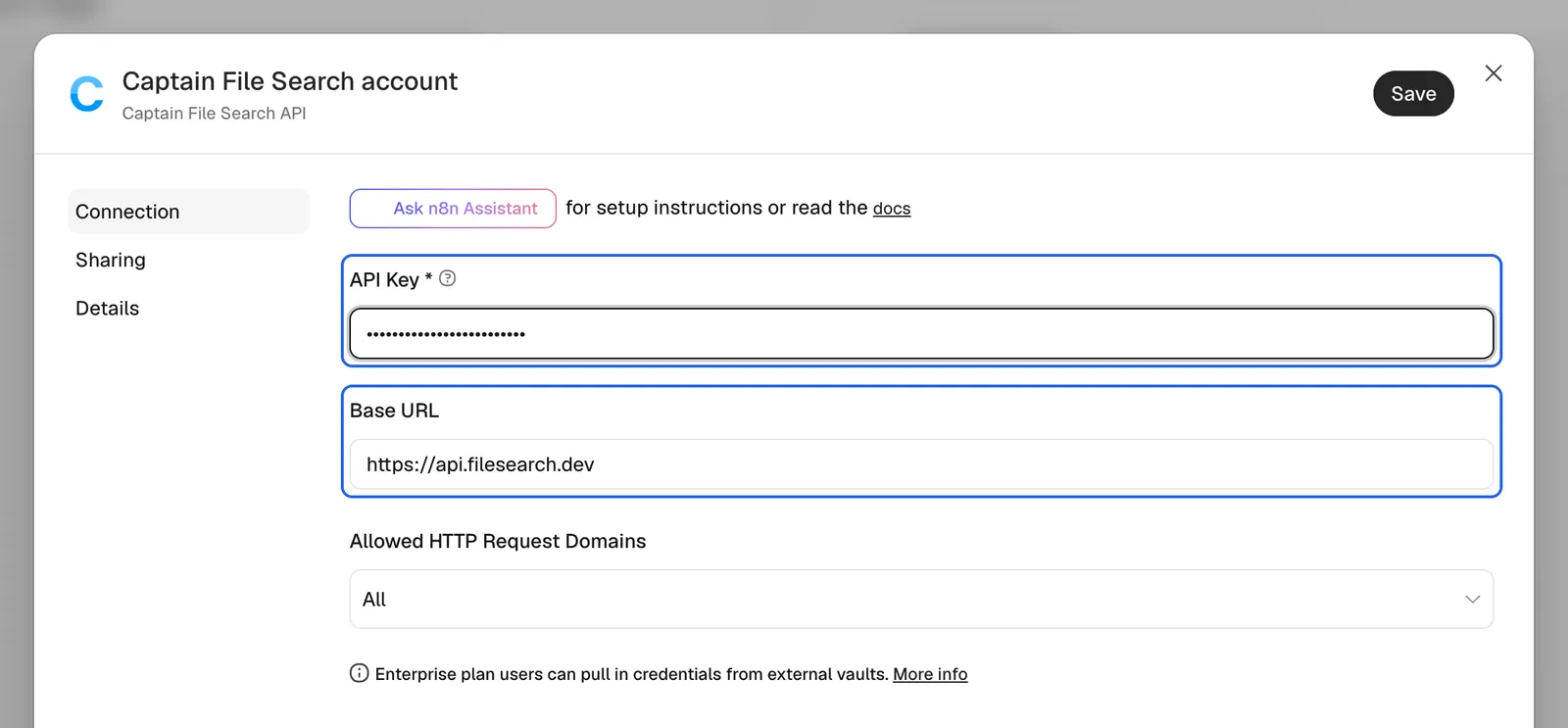
The key decides the environment: a cap_dev_ key reads and writes development collections, and a cap_prod_ key reads and writes production collections.
Storage credentials
Indexing from storage also needs a credential for that storage. The node sends these values to Captain File Search with each request, and the same credentials fill the node’s bucket, folder and file dropdowns.
Every dropdown also has a mode for typing or pasting a name, path, ID or link, for credentials that can read a location but not list it. For S3 with an IAM role, type the bucket and path.
Example workflows
Each example below is a complete workflow. The screenshot shows the workflow on the n8n canvas, and the steps set up each node.
Example 1: Index email attachments as they arrive
New Gmail attachments go into a contracts collection, tagged with the sender.
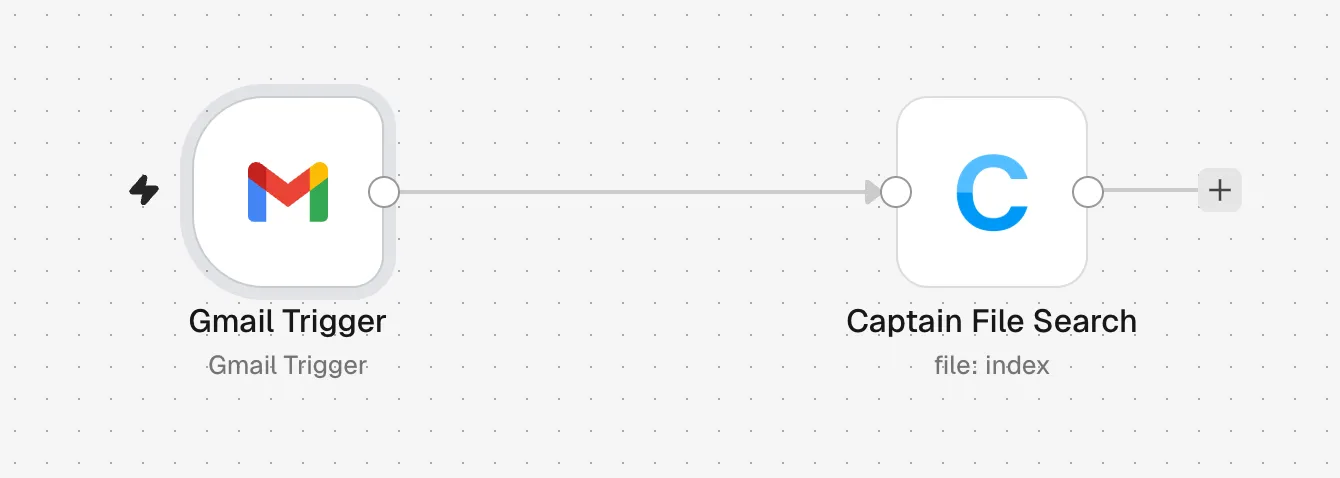
Before building the workflow, create the collection once: run Captain File Search → Create Collection with the name contracts in a separate workflow, or create it in the Studio.
- Add a Gmail Trigger and turn off Simplify, which shows its Options.
- Under Options, turn on Download Attachments.
- Add Captain File Search → Index Uploaded File after it.
- Pick
contractsunder Collection. - Set Input Binary Field to
attachment_0, the first attachment. Gmail numbers the restattachment_1,attachment_2and so on. - Under Options, add Custom Metadata with the key
senderand the value{{ $json.from.value[0].address }}.
Each attachment becomes a document in contracts. Captain File Search does the indexing, not n8n. With Wait for Completion on (the default), the node waits for the job and returns its result.
Example 2: Index a storage bucket every night
A schedule checks a folder in Amazon S3 every night and indexes the files added since the last run.
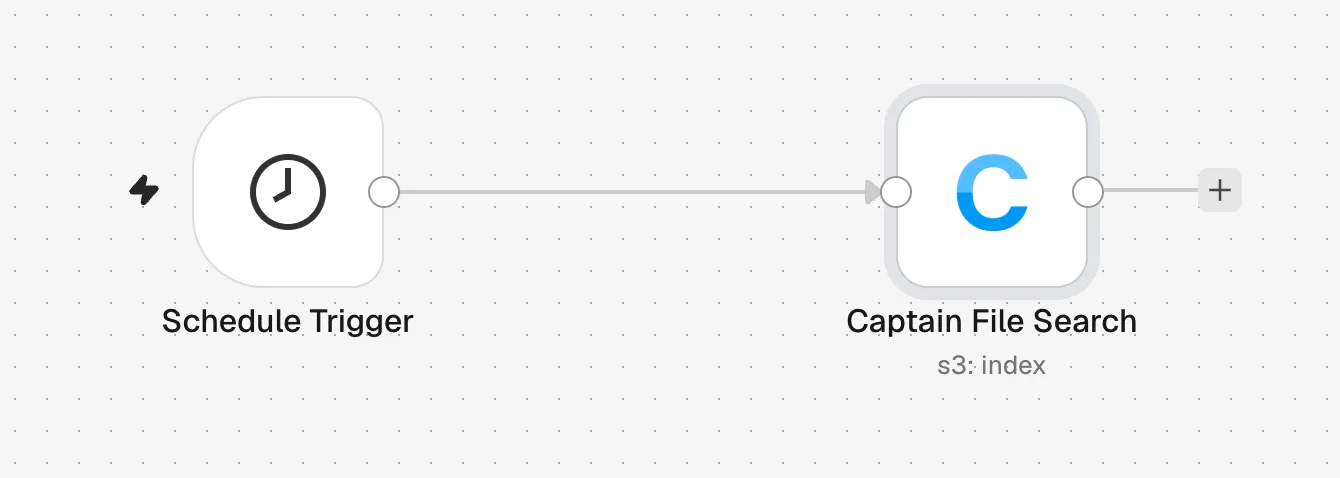
- Add a Schedule Trigger set to run once a day.
- Add Captain File Search → Index Files From Amazon S3.
- Pick the S3 credential, the Collection and the Bucket.
- Set What to Index to Folder, then pick the folder.
- Set If Already Indexed to Skip, so files already in the collection are left alone and only new files are indexed.
The same pattern works for Google Cloud Storage, Azure Blob Storage, Cloudflare R2, Supabase Storage, Backblaze B2, Google Drive, SharePoint, OneDrive and Dropbox. Skip matches files by name, so an edited file keeps its old version. Replace re-indexes every matching file on every run, which repeats work for the whole folder. To pick up edited and deleted files as well, run Sync → Create Amazon S3 Sync once instead of a schedule, and under Options set Check Every (Minutes), such as 1440 for once a day. Without that option, the sync only checks for changes when Run Sync Now is called.
Example 3: Search a collection
A question returns the matching passages, one item per passage, for the next node to use.
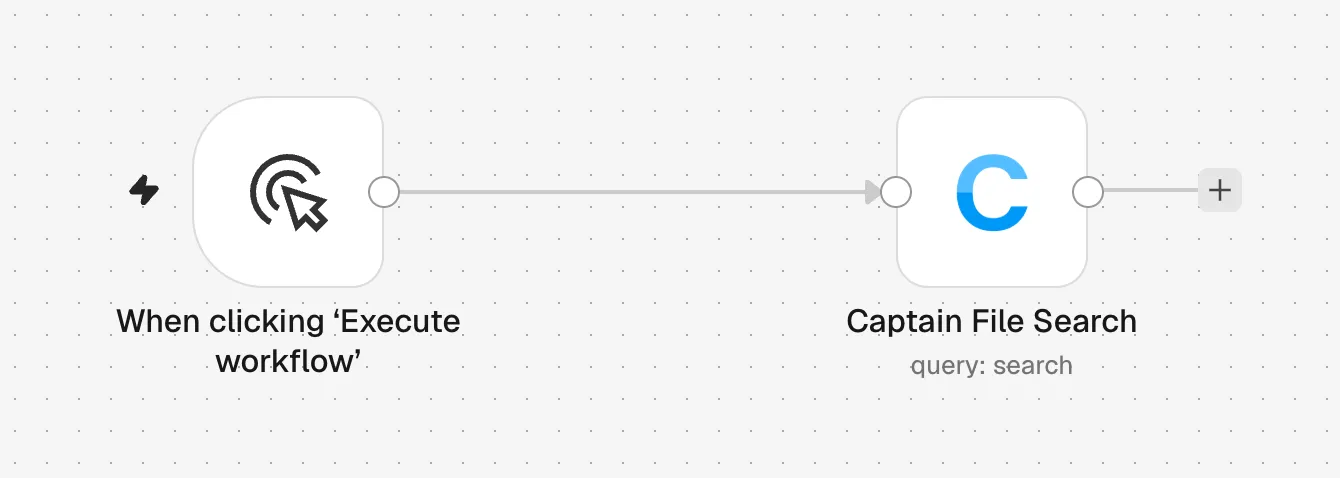
- Add Captain File Search → Search Collection after any trigger.
- Pick the Collection.
- Enter a question under Query, or map one from an earlier node.
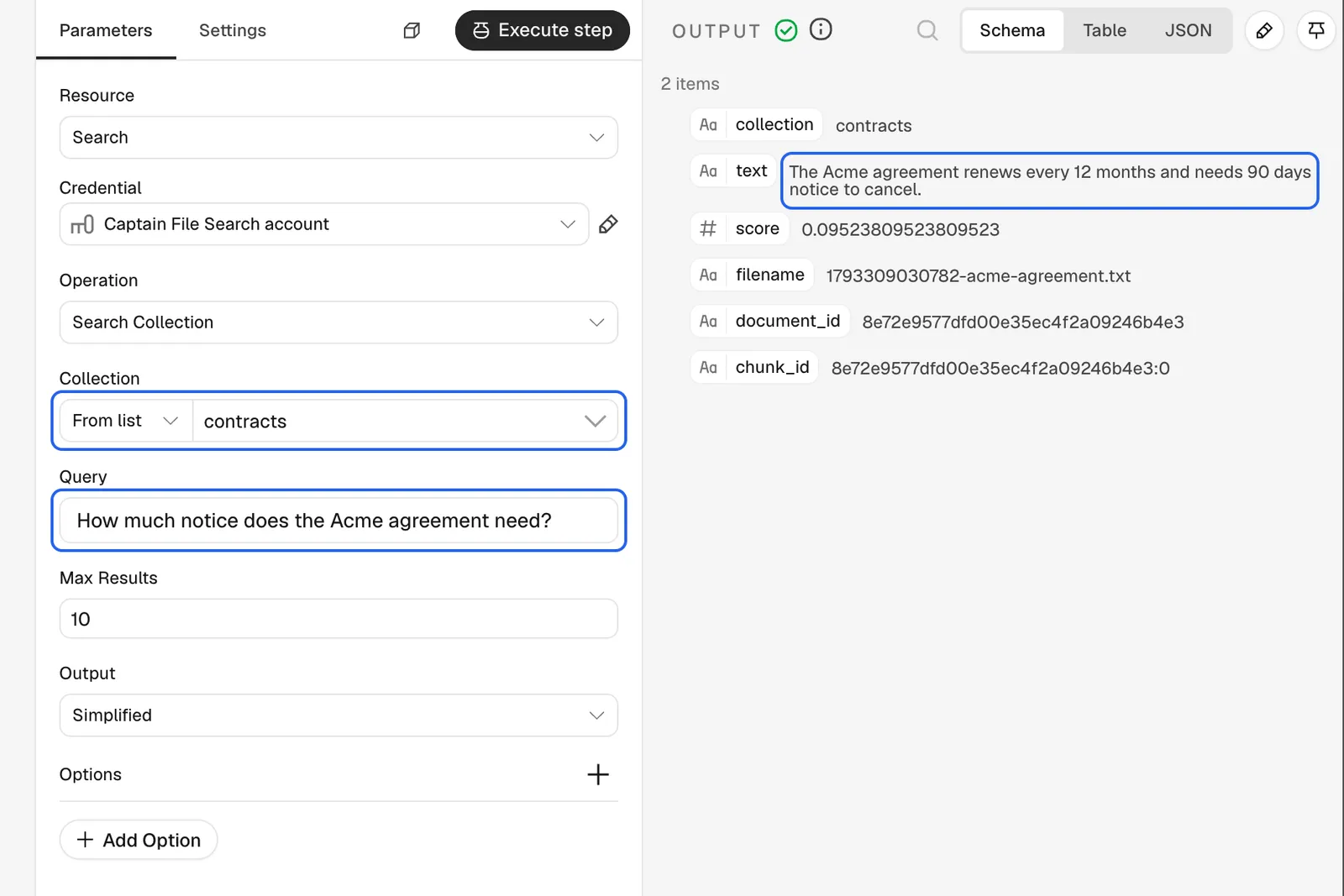
Output sets how much each passage carries:
- Simplified (the default) returns the text, score, file, page, IDs and metadata.
- Raw returns every field.
- Selected Fields returns only the fields picked, plus the chunk and document IDs.
Options add metadata filters, reranking and the balance between keyword and semantic matching. To search up to 10 collections at once, use Search Multiple Collections.
Example 4: Answer questions with an AI Agent
A chat agent searches a collection whenever a question needs it, and answers from the passages it finds.
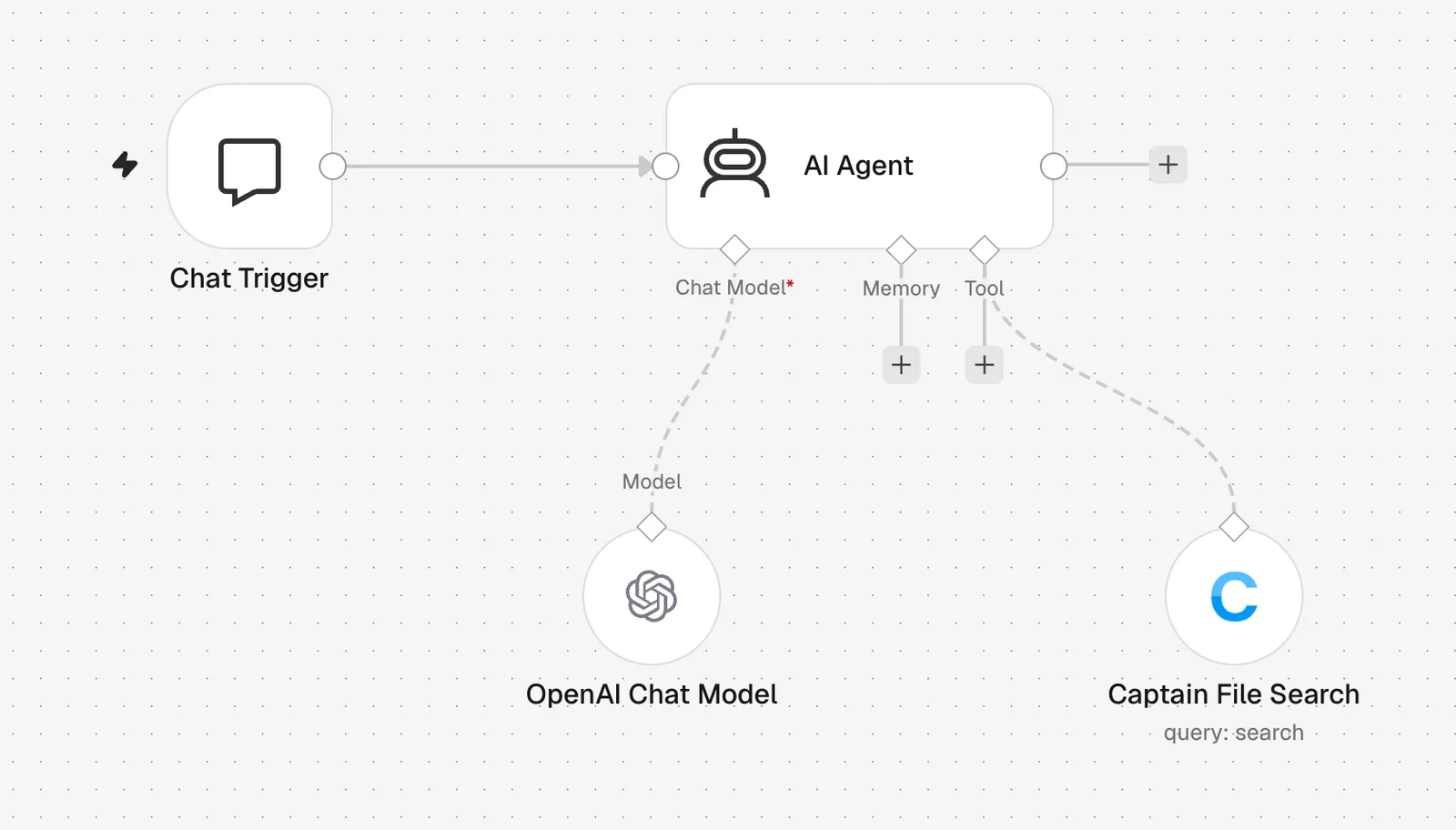
- Add a Chat Trigger.
- Add an AI Agent after it.
- Under Chat Model, attach a chat model, such as OpenAI Chat Model.
- Under Tool, attach Captain File Search.
- Set the tool’s action to Search Collection and pick the collection.
- Keep Output on Simplified or Selected Fields, so the agent receives short passages.
Example 5: Act when an indexing job finishes
A job that finishes or fails starts a workflow, such as a Slack message. Large jobs can run for hours, so this continues the work without holding an n8n execution open.
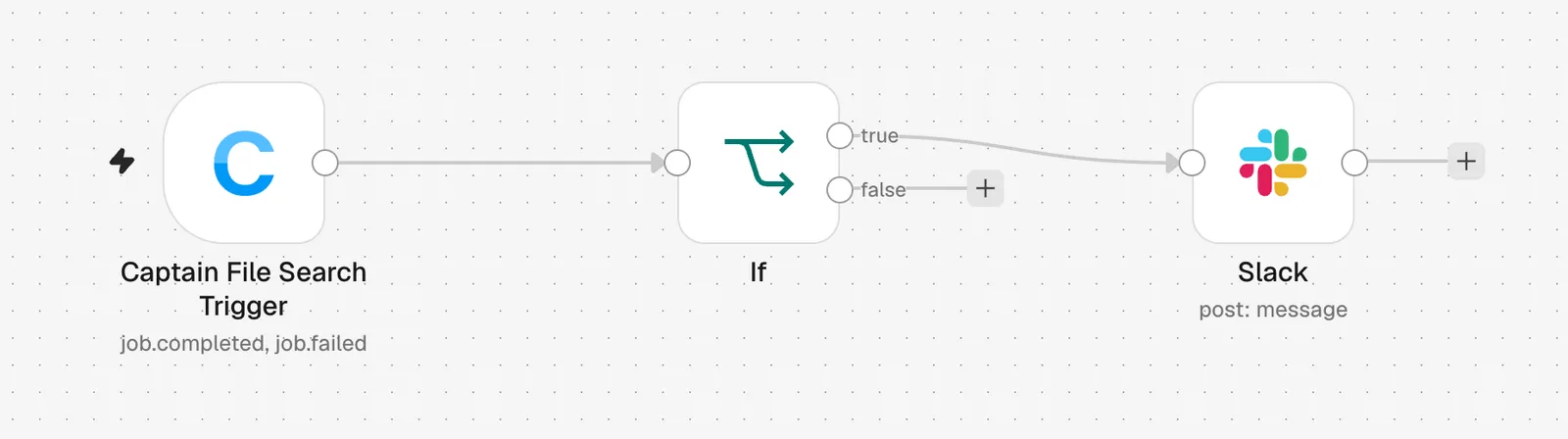
- Add Captain File Search Trigger as the first node.
- Under Event Names or IDs, choose the job events, such as
job.completedandjob.failed. - Optionally, under Options, limit it to certain collections, or set Started By to API Call or Storage Sync.
- Add an If node to keep only the jobs this workflow cares about.
- Add the next step, such as Slack → Send Message.
- Activate the workflow.
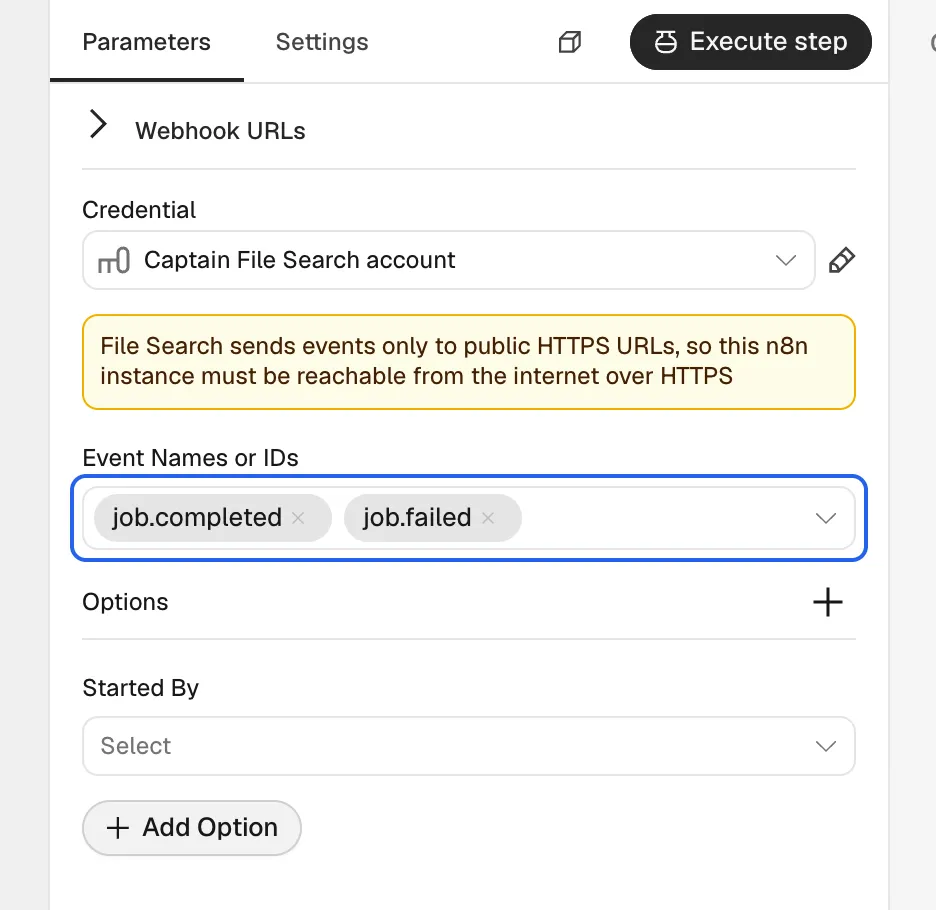
The trigger registers a webhook with Captain File Search when the workflow is activated, and removes it when the workflow is deactivated. It receives every matching job in the organization, not only the jobs one workflow started. To continue one specific job, save the job_id the indexing action returns (with Wait for Completion off), then compare it with data.job_id in the If node.
Every delivery is signature-checked, and a request with a missing or wrong signature is rejected. Captain File Search only delivers to public HTTPS URLs, so the n8n instance must be reachable from the internet over HTTPS. See Webhooks for the event payloads.
Actions
Collections, documents, jobs and syncs are picked from searchable dropdowns that load from the account. Each picker also takes an ID, so a workflow can pass one from an earlier step.